
Looting System
0 - Introduction
The purpose of this document is to give a more detailed explanation on how Looting would work in the Mawforged MVP. Note that changes can be made to this system in the final game. Should the assigned programmer need any more information, contact @Alexandros Mloukie .
1 - Enemy Inventory
Every enemy in the game needs to have access to their very own inventory. This can probably use the already used for the player, though there are gonna be some extra things to it so a new component might be needed. The inventory will be populated with items on enemy spawn instead of on-death. The items that will occupy the inventory will be defined through a , so designers can easily tweak values later on.
1.1 - Enemy Loot Data Table
The loot entries struct that will fill the will be in the following form:
| Variable | Type | Description |
|---|---|---|
| Item | The item and that will be added to the enemy inventory. | |
| Amount | The amount of the item that will be added. | |
| DropWeight | The chance that this item will be added to the enemy inventory. The value must be between 0 and 1 (mapped to 0% - 100%) |
The enemy uses a to define which entry in the Data Table they will be using to populate their inventory.
2 - Looting Interaction
2.1 - Staring the Interaction
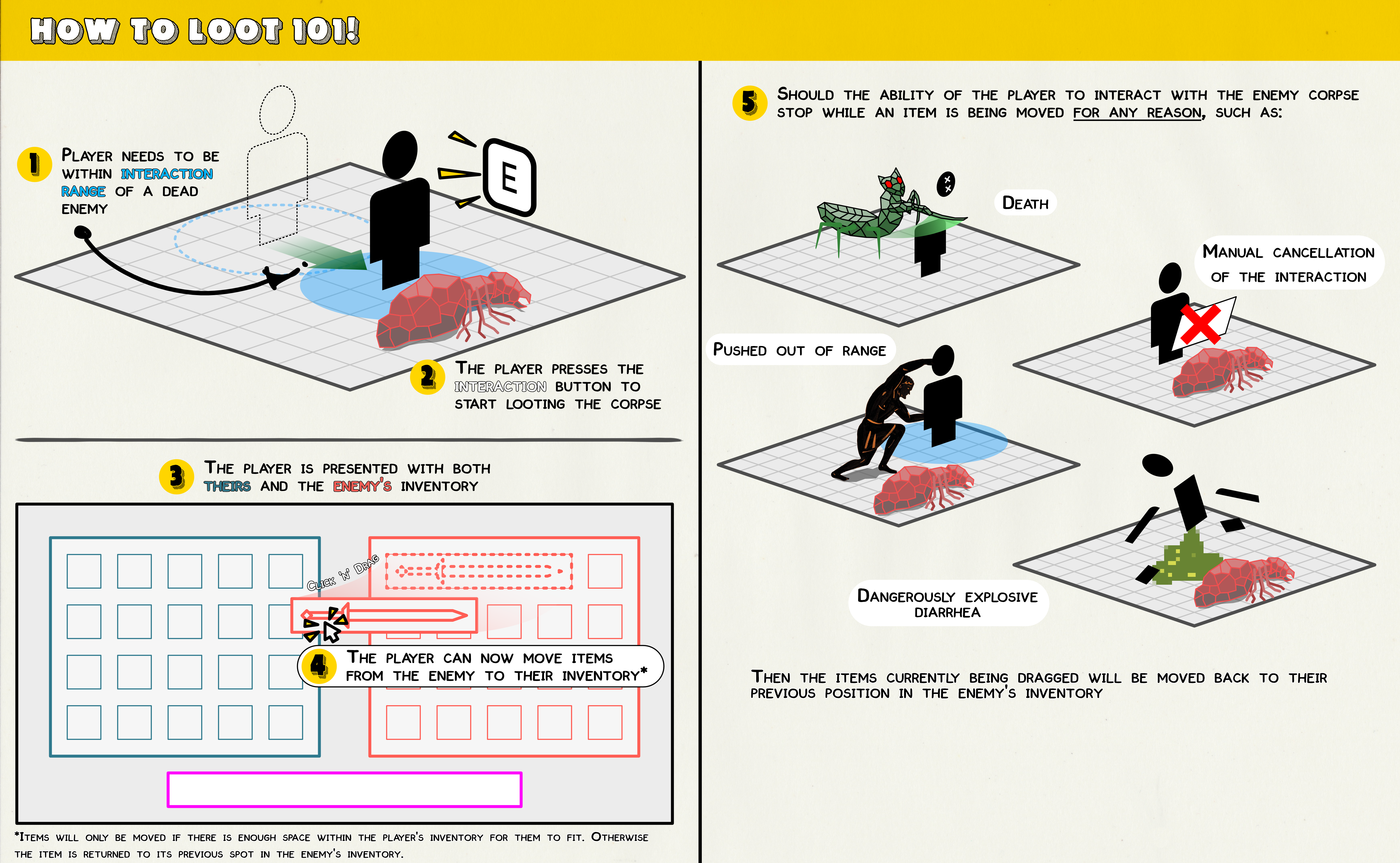
To start looting a target, the player must be within interaction range of the enemy's corpse, and press the interaction button while looking at said corpse. Once these actions have been completed, the player is presented with the which displays both the player's and the enemy's inventories side by side.
2.2 - Moving Items
The player can move items from one inventory to another by Dragging & Dropping the desired item. The looting interaction has 2 types based on the container being looted:
| Container Type | Interaction Style |
|---|---|
| One-Way (e.g. Enemy Corpse) | The player can only move items from the enemy's inventory to their own and not the other way around. |
| Two-Way (e.g. Chest) | The player can move items between both inventories, allowing them to off-load items if they wish to in this container. |
Attempting to move an item from one inventory to another, is successful only if that item has enough space in the area of the inventory it has been dropped off.
2.3 - Interaction Cancellation
The looting interaction can be cancelled due to a variety of circumstances:
- Player death while interacting
- The corpse or player moving out of interaction range
- Pressing the button to end the interaction while an item is being dragged by the mouse but not yet dropped somewhere
- and other such edge cases.
Should the looting get cancelled for any reason, then any item(s) currently being held by the mouse are automatically moved back to their previous positions. In essence, an item is moved from one inventory to another only when the drag & drop process has been successfully completed.